Akamai Bot Manager
How to verify Akamai Bot Manager compatibility with Speed Kit and manually configure Speed Kit as a custom bot when strict security policies require it.
Akamai Bot Manager Configuration for Speed Kit
Key Takeaways
- Speed Kit works out of the box in most standard Akamai setups, as our traffic is natively recognized and categorized under "Site Monitoring and Web Development Bots".
- If your active security policy sets this default category to "Allow" or "Monitor", no manual configuration or whitelisting is required.
- For highly restrictive security policies that block this category, you can easily guarantee uninterrupted acceleration by manually adding Speed Kit as a Custom Bot using our specific IP ranges and User-Agent.
Introduction
To deliver instant page loads and accelerate your e-commerce shop, Speed Kit's backend infrastructure must regularly fetch and cache your dynamic content. For websites protected by Akamai Bot Manager, it is crucial that this automated backend traffic is correctly identified and permitted to access your origin server.
Fortunately, Speed Kit is natively recognized by Akamai's bot directory. Because of this, Speed Kit functions perfectly out of the box in the vast majority of standard setups without requiring any manual whitelisting or configuration from your IT team.
This guide explains how to quickly verify your current Akamai Bot Manager settings to ensure out-of-the-box compatibility, and provides step-by-step instructions on how to manually configure Speed Kit as a custom bot only if your strict security rules require it.
Why Speed Kit Usually Works Out of the Box
Akamai actively maintains a directory of known bots. Speed Kit is permanently included in the Akamai system under the category "Site Monitoring and Web Development Bots".
In a typical Akamai Bot Manager configuration, the default action for this category is already set to "Allow" or "Monitor". If your security policy uses these default settings, Speed Kit traffic will automatically pass through without any issue. You will not need to make any changes to your Akamai setup to achieve maximum acceleration.
We highly recommend checking your active Akamai Security Policy first to verify the action assigned to "Site Monitoring and Web Development Bots". If it is set to "Allow" or "Monitor", your setup is complete and you can skip the rest of this guide.
Adding Speed Kit as a Custom Bot
If your organization's security policy requires you to block or heavily rate-limit the "Site Monitoring and Web Development Bots" category, you must manually add Speed Kit as a Custom Bot. This ensures our services can continue to accelerate your loading times without triggering false positives.
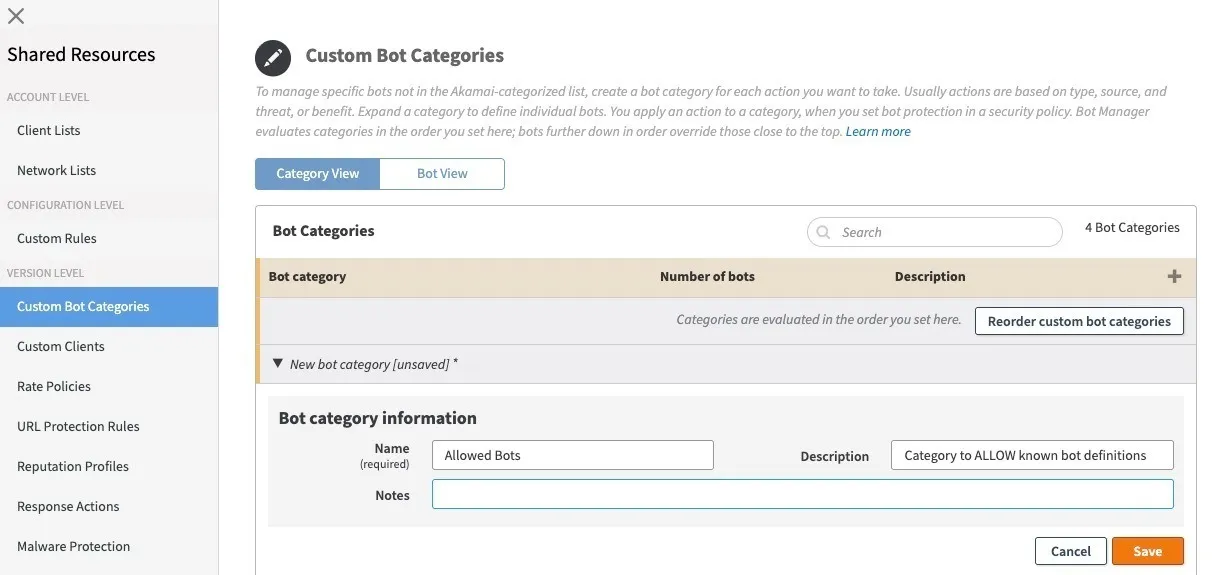
Step 1: Create a Custom Bot Category
First, you need a designated category that is allowed to bypass your bot protections. Many organizations already have an existing category configured for trusted third-party services (e.g., "Allow bots" or "Whitelisted Bots"). If you already have an appropriate category, you can use it and skip to Step 2.
If you do not have one, you must create it:
- Navigate to your Akamai Shared Resources and select Custom Bot Categories.
- Create a new bot category and name it (e.g., "Allow bots").
- Add a description to clarify its purpose.
- Save the category.
- Crucially, ensure that this new (or existing) category is set to Allow or Monitor within your active Security Policy.
Step 2: Define the Speed Kit Bot
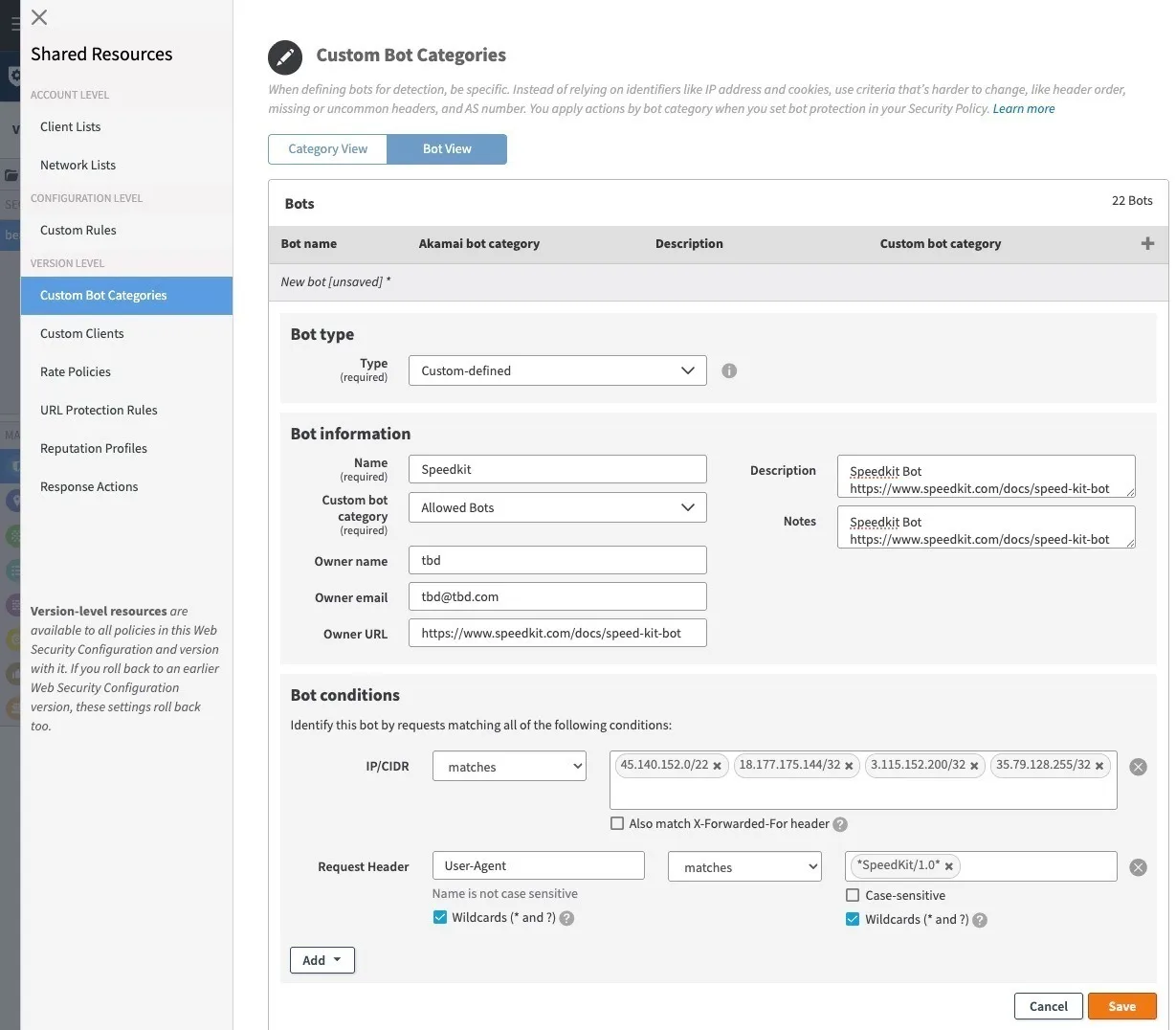
Next, you will define the specific characteristics of the Speed Kit backend so Akamai can identify it.
- Switch to the Bot View tab under your Custom Bot settings and click to add a new bot.
- Enter "Speedkit" as the Bot name.
- Set the Bot type to "Custom-defined".
- Assign this bot to the Custom bot category you created in Step 1 (e.g., "Allow bots").
Step 3: Configure Bot Conditions
To ensure Akamai accurately targets only Speed Kit traffic, you must define the bot using specific IP ranges and headers. Under the Bot conditions section, identify the bot by requests matching all of the following conditions:
IP/CIDR Network Ranges
Set the IP/CIDR dropdown to matches and input the following Speed Kit infrastructure IP ranges:
- 45.140.152.0/22
- 18.177.175.144/32
- 3.115.152.200/32
- 35.79.128.255/32
Request Header
Set the Request Header definition to identify our specific User-Agent:
- Input User-Agent in the header name field.
- Set the condition to matches.
- Input *SpeedKit/1.0* in the value field.
- Ensure the Wildcards ( and ?)* checkbox is enabled so the pattern is recognized correctly.
Step 4: Save and Deploy
Once all information and conditions are entered, click Save. Finally, deploy your updated Web Security Configuration to push the changes live to the edge network. Speed Kit will now be successfully recognized and permitted by your Akamai Bot Manager.
Additional Information
For more comprehensive details regarding our bot's behavior, technical characteristics, and how it interacts with your site, please refer to our official Speed Kit Bot documentation.