Speed Kit on Shopify
How Speed Kit issues and renews the Shopify Crawler Access Signature automatically, and which Shopify-specific behaviors it applies.
Speed Kit on Shopify: Setup and Behavior
Key Takeaways
- Automatic Crawler Access: Speed Kit needs a Shopify Crawler Access Signature to fetch your pages and build the cache that keeps your store fast. Our Shopify app creates it, syncs it and renews it for you — you never copy a token by hand.
- No Manual Renewal: Signatures are renewed automatically before they expire. The former 90-day renewal cycle no longer applies, so there is no calendar reminder to set and no lapse in service to worry about.
- Platform-Aware Configuration: Speed Kit automatically adapts to Shopify's preview mode, rate limits, and query parameter handling — no manual configuration required.
Introduction
To deliver always-fresh content on your Shopify store, Speed Kit regularly fetches your pages in the background. Shopify requires these requests to carry a Crawler Access Signature — the token that authorizes Speed Kit to read your pages and cache them. Speed Kit's Shopify app now creates and renews that signature entirely on its own. This guide explains how that works, where you can see the signatures in your Shopify admin, and which Shopify-specific settings Speed Kit applies automatically.
Crawler Access
Shopify enforces bot protection on all storefronts, so Speed Kit's background requests must be authenticated with a Crawler Access Signature. Speed Kit needs this signature to fetch your pages and build your cache — without a valid one, Shopify may rate-limit or block those requests, resulting in stale content or error codes. You do not have to create or manage it: Speed Kit handles the signature fully automatically.
You can read more about this on the official Shopify help page: Crawling Your Store
How It Works
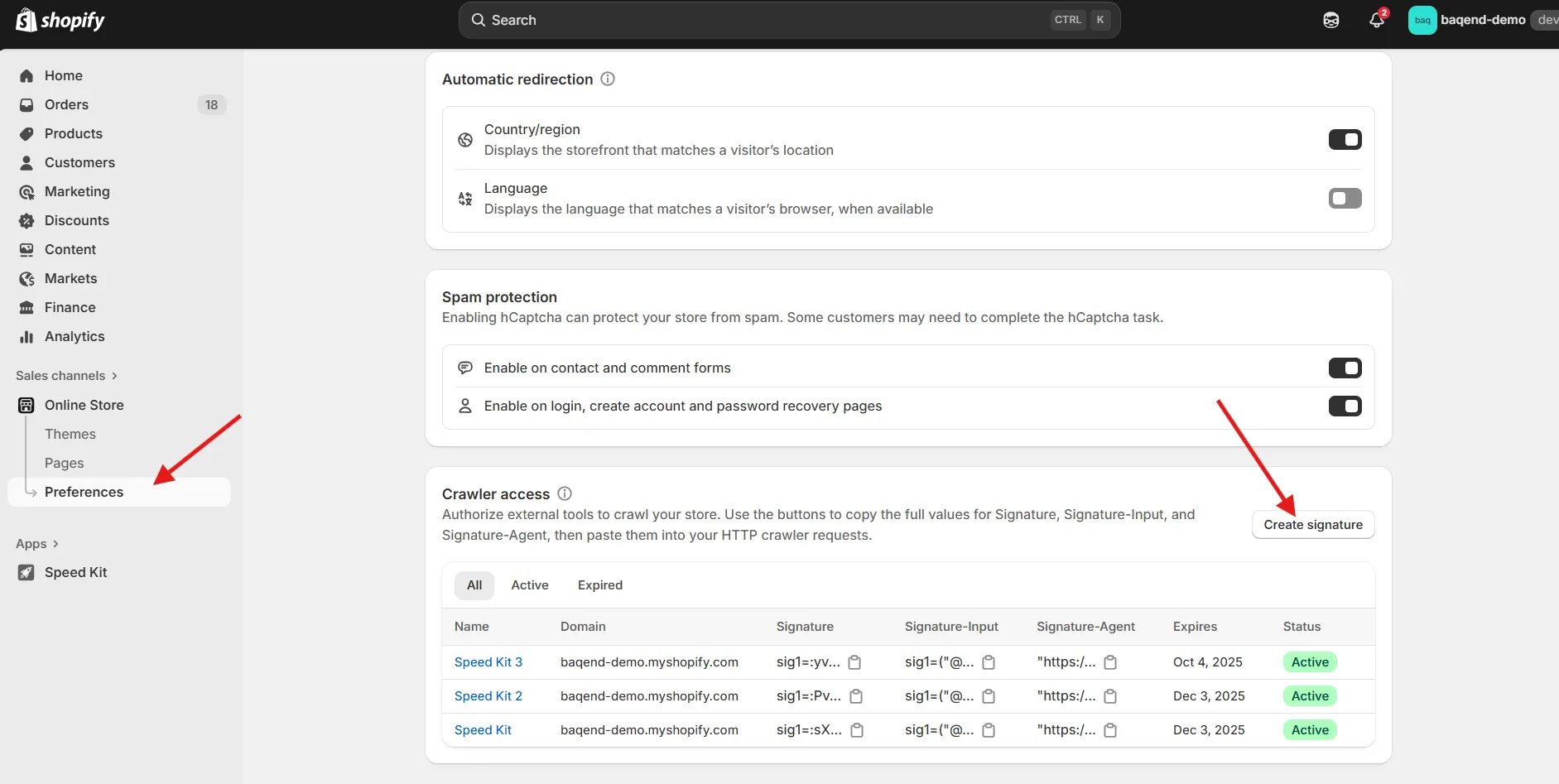
Speed Kit's Shopify app issues the crawler access signature for you through Shopify's Admin API, syncs it to Speed Kit, and renews it before it expires.
If you are installing Speed Kit for the first time, the required permission is granted as part of the normal installation — there is nothing else to do. If you already had the Speed Kit app installed before this change, open the app once and confirm the one additional permission it asks for. After that, everything runs automatically.
The signatures Speed Kit creates stay visible to you at any time in your Shopify admin under Online Store → Preferences, in the Crawler access section:
Shopify-Specific Configuration Details
Speed Kit automatically adapts its configuration to Shopify's platform constraints. No manual configuration is needed for the items below, but understanding them helps with debugging and support conversations. For a full reference of all configuration options, see our documentation: "Speed Kit Configuration."
Preview Mode Handling
When you preview a theme in your Shopify admin, Speed Kit automatically detects the preview cookies (preview_theme and speedkit-shopify-preview) and URL parameters (?preview_theme). Pages accessed in preview mode bypass the cache entirely, ensuring you always see your latest theme changes in real time.
Rate Limit Management
Shopify enforces strict rate limits on all server requests. Speed Kit respects these limits by defaulting to a maximum of 5 requests per second to your Shopify origin, compared to higher defaults on other platforms. This prevents HTTP 429 (Too Many Requests) errors. During periods of high request volume, Speed Kit's dynamic throttling automatically backs off further to protect your store's availability. Customers continue receiving cached content during any throttling — they experience no downtime.
Query Parameter Handling
Shopify appends various tracking and internal query parameters to URLs. Speed Kit automatically strips these before caching to prevent unnecessary cache fragmentation (where the same page gets stored multiple times under different URLs):
- Shopify internal parameters: _fid, _pos, _psq, _sid, _ss, _v.
- Recommendation tracking: Parameters with the pr_ prefix (Shopify product recommendation tracking).
- A/B testing and preview: _ab, _fd, view.
This means two URLs differing only in these parameters correctly resolve to the same cached page.
Console Messages from Shopify's Service Worker
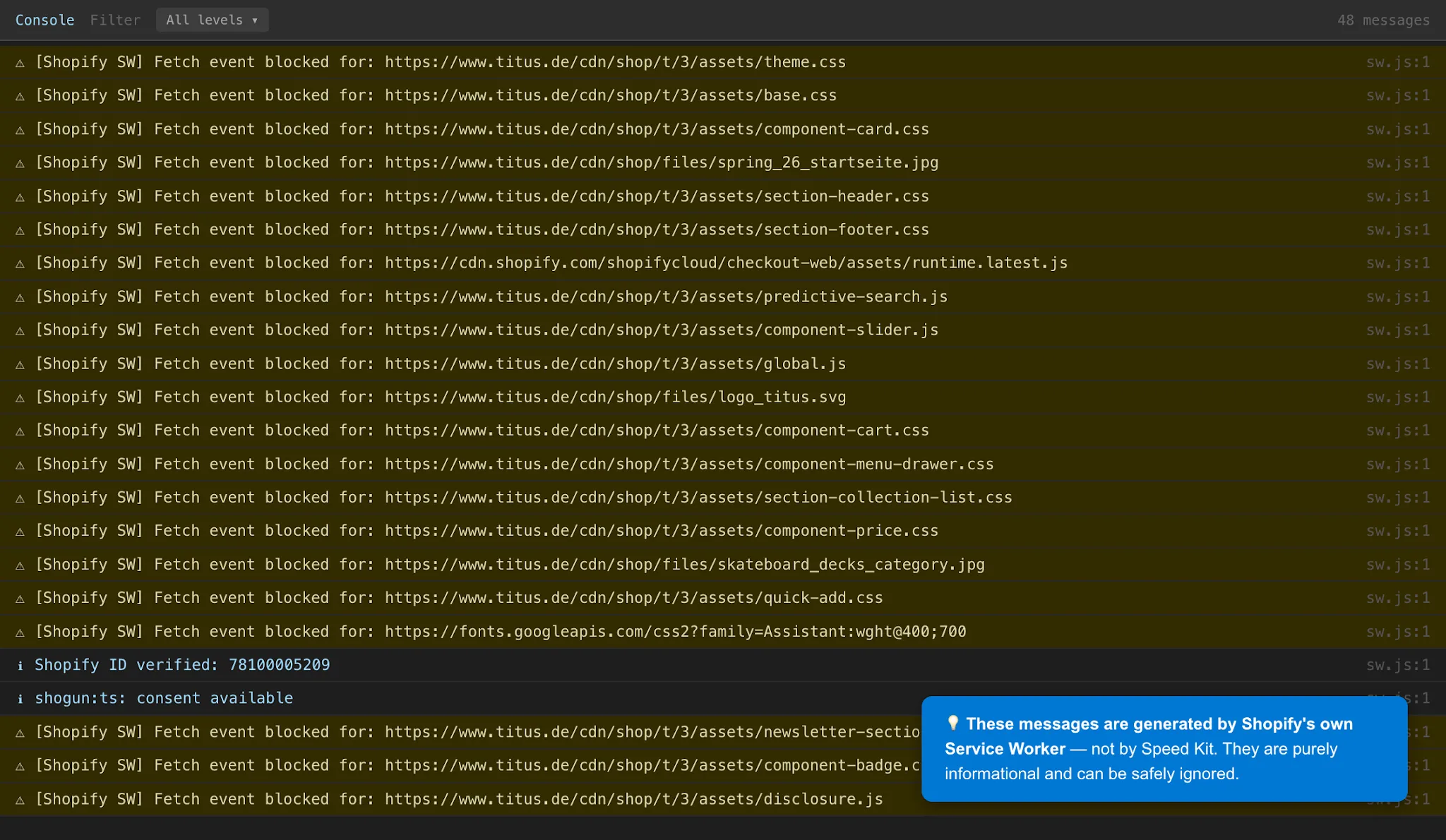
When Speed Kit is active, you may notice many "fetch event block" log messages in your browser's developer console, as shown in the screenshot below. These messages do not come from Speed Kit. Shopify's own interim service worker generates them, logging a message for every resource it processes. These logs are purely informational and do not indicate any problem with Speed Kit or your store. They can be safely ignored, even though they appear frequently.
Keeping Your Setup Current
Verifying Your Setup
You can verify that Speed Kit is correctly installed and running on your Shopify store at any time using the Speed Kit Chrome extension. Open your store in Chrome, click the extension icon, and check the installation status panel. Blue checkmarks next to each requirement confirm a correct setup. If any issue is detected, address it in the Speed Kit app within your Shopify admin — installation is managed there, not in the Chrome extension.